
Service Description: The SSL VPN connection service is a collaboration between the dedicated SSL-VPN service provided by the National Center for High-Performance Computing (NCHC), known as TWAREN, and the NFU authentication system. It allows users in off-campus network environments to connect to the campus network and obtain an internal campus IP address.
By using the SSL VPN connection, users can utilize applications and services that require a NFU IP address as if they were physically on the campus network. Examples include downloading electronic journals from the library or accessing campus-licensed software downloads, among other exclusive campus services.
Software Download Link: 22.7R2(Windows Download Link、MACDownload Link)
Eligible Users: Current faculty, staff, and enrolled students
Step 1: Go to https://nfu.twaren.net/ o log in to the SSL-VPN portal.
Select「選擇進入」 (Choose to Enter).
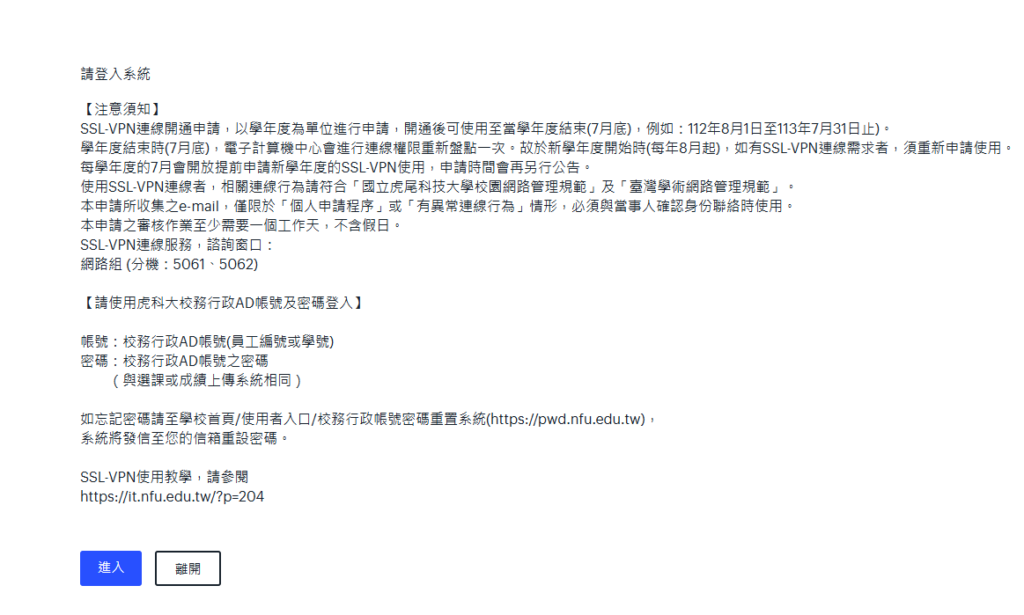
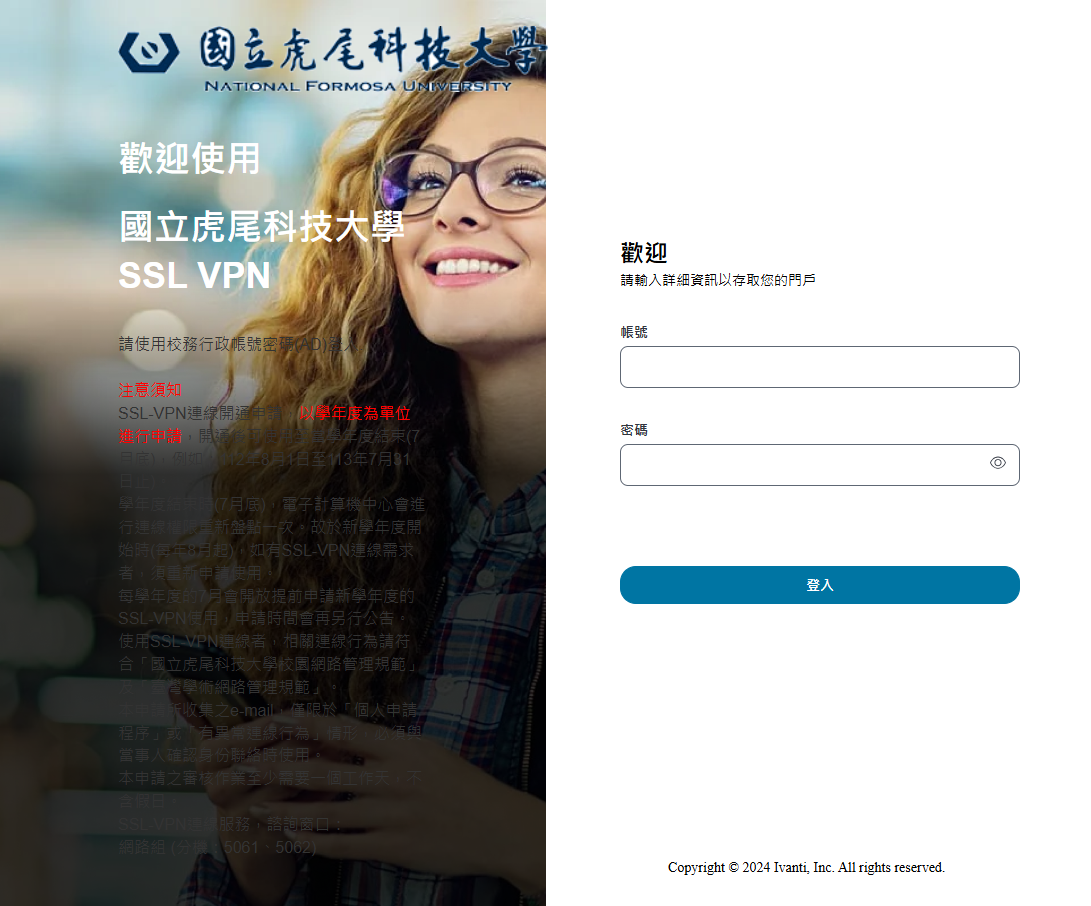
Please use your Campus Administration System account and password to log in.。
(1)Faculty/Staff:Same as your attendance system account and password.。
(2)Students: Same as your course registration system account and password.。
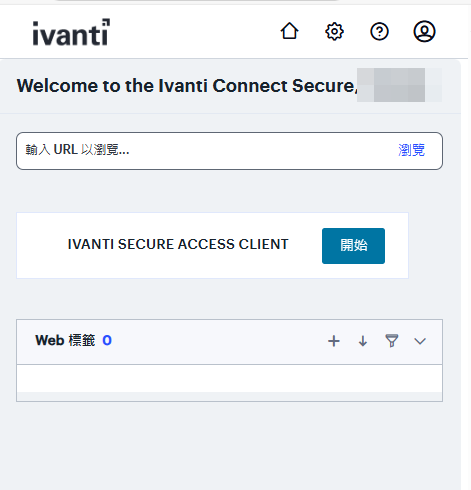
Step 2: Click 「開始」 (Start).
Step3 Download the 「啟動程式」 (Launcher/Installer program), then click 「開啟」 (Open).
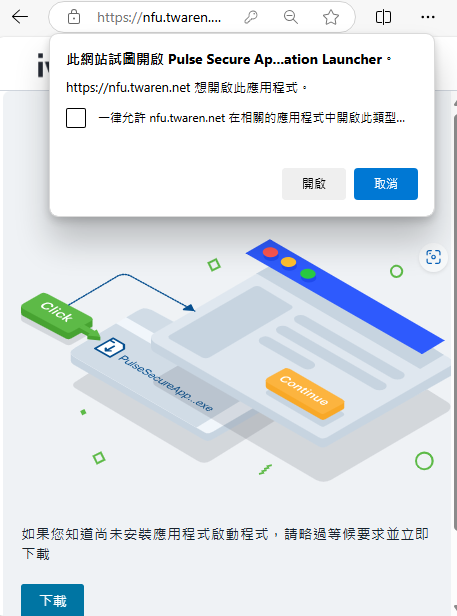
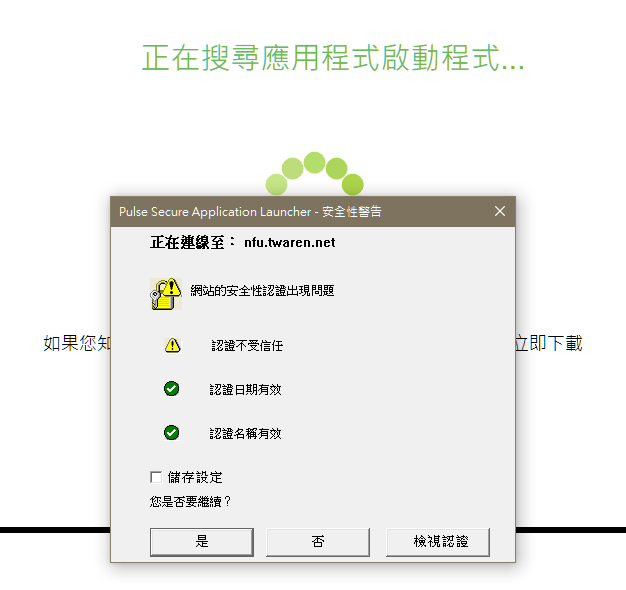
Step4 A security warning will pop up; select 「是」 (Yes).
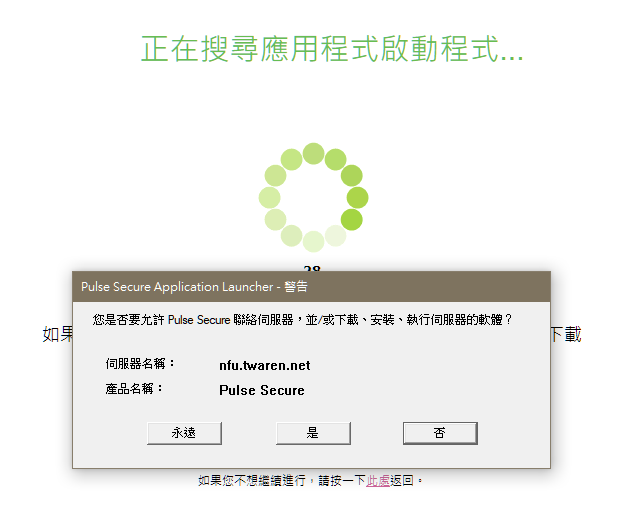
Step5 When asked if you want to allow Pulse Secure to contact the server, select 「永遠」 (Always).
Step6 After installation is complete, click the up arrow (^) in the bottom-right corner of your computer screen and select the 「鑰匙」 (key) icon.
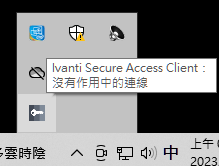
step7 Open the Ivanti Secure Access Client to complete the installation.
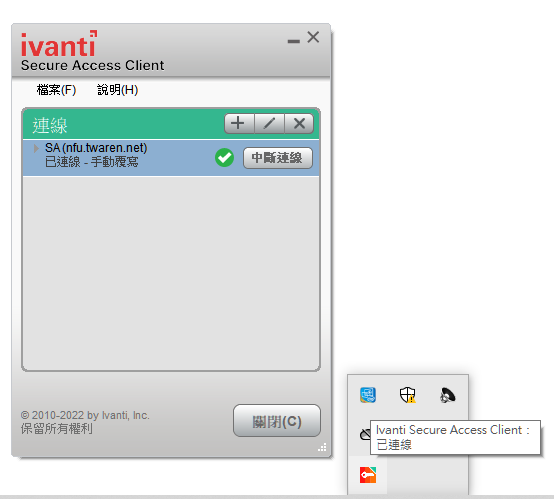
Next time you start your computer and need to use the SSL VPN:
Select 「繼續」 (Continue) and press 「連線」 (Connect) to use the service.
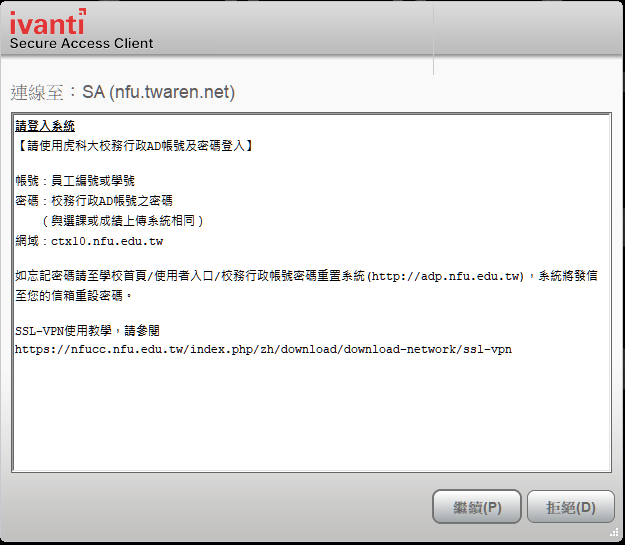
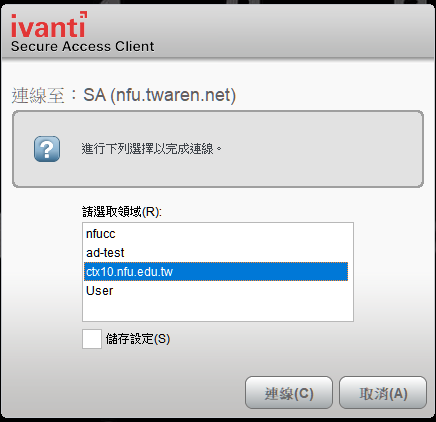
Mobile Environment Setup (Phone/Tablet)
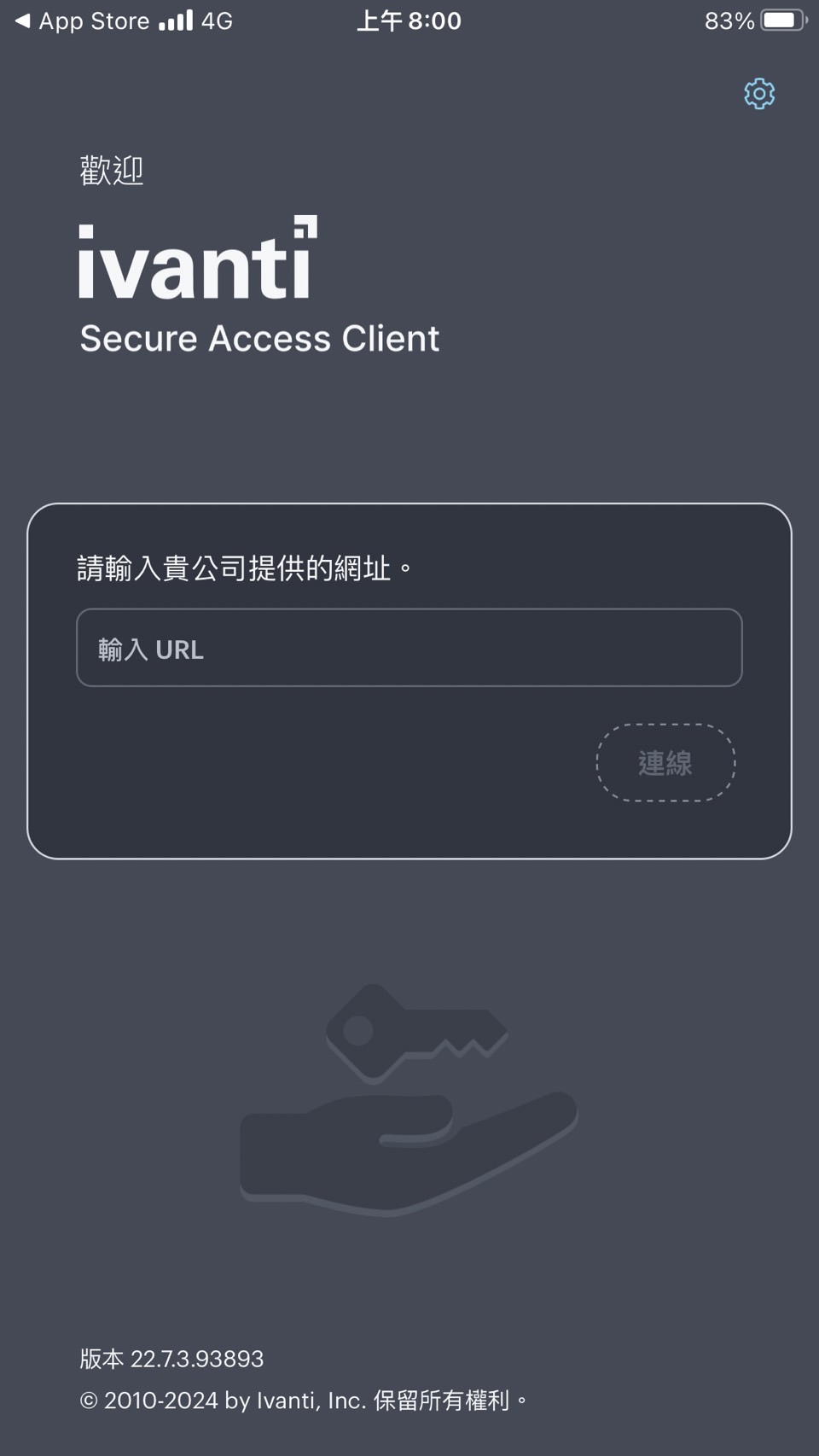
1.Install the Ivanti Secure Access Client App.
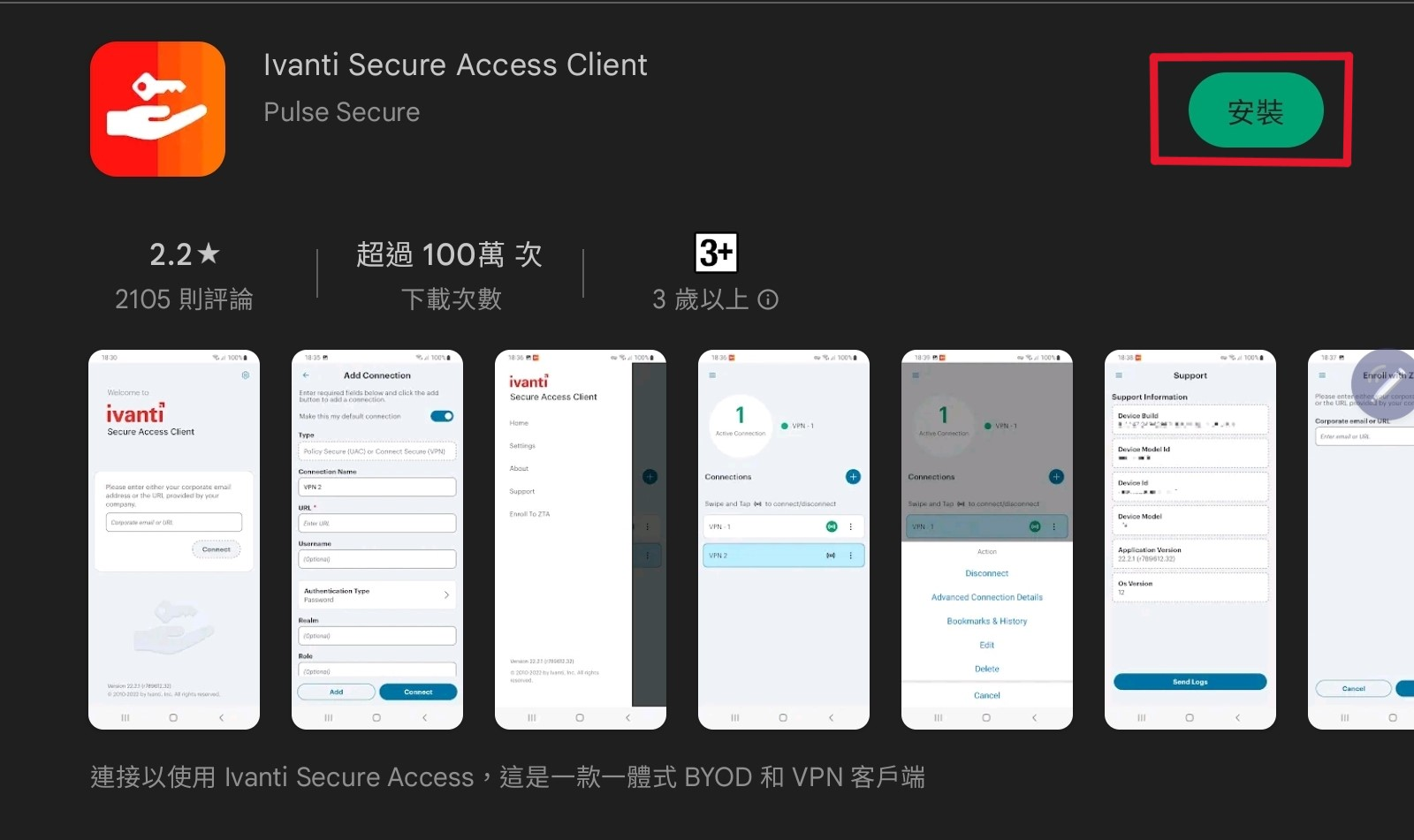
2.After installation is complete, proceed with setup.「nfu.twaren.net」。
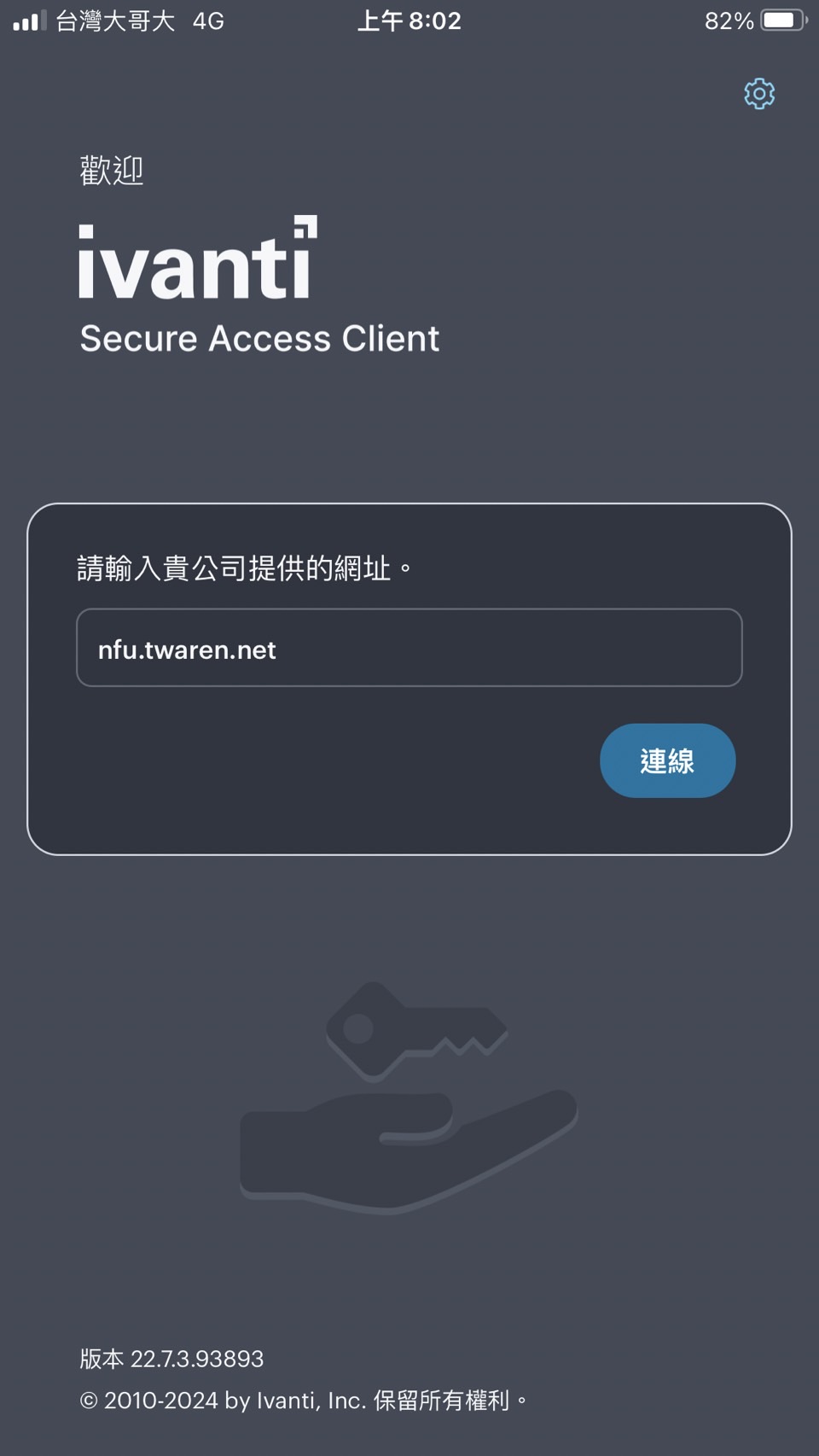
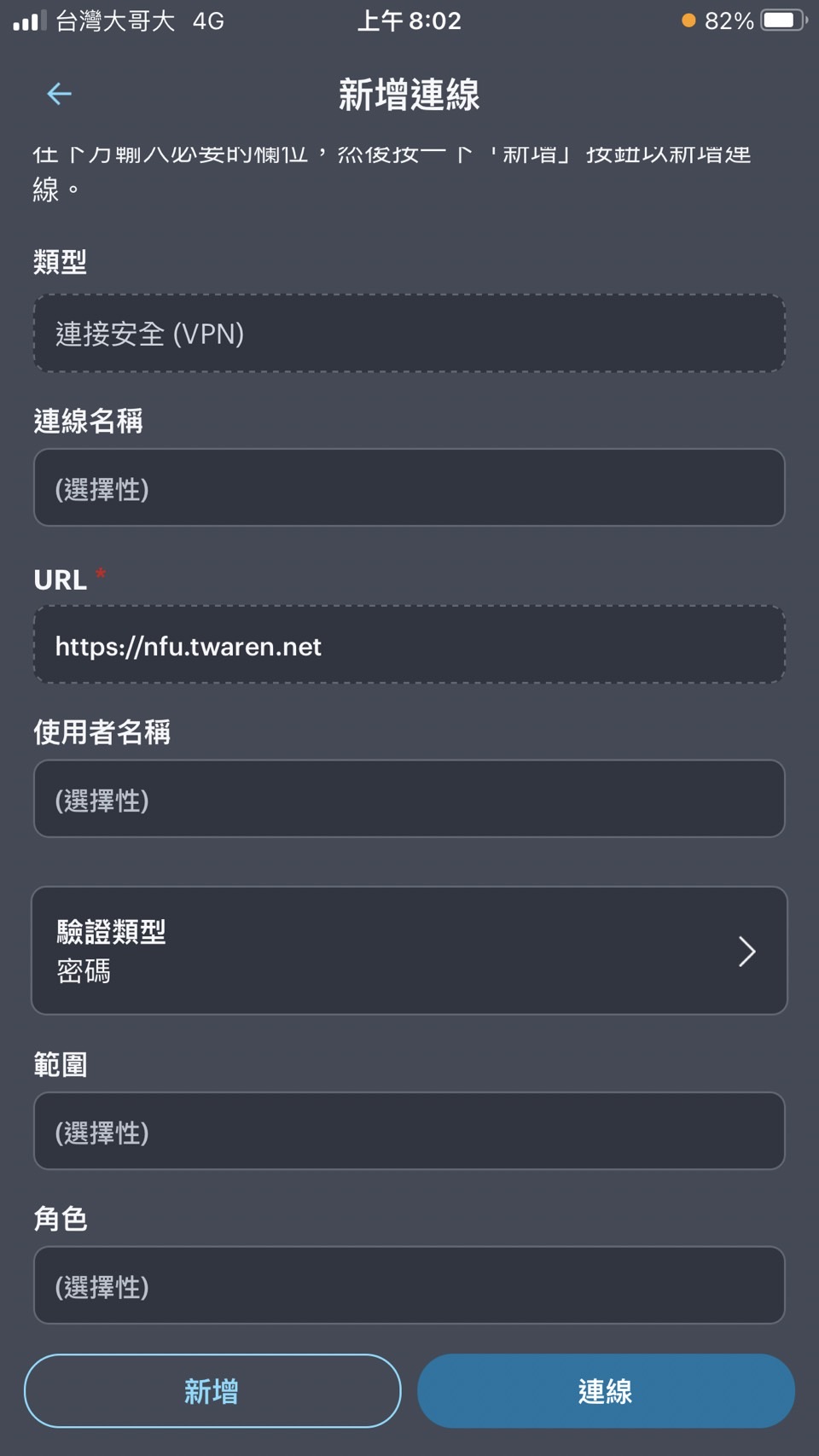
When the "Add Connection" screen appears, enter the Connection Name: SSLVPN
(2)Enter Username: Student ID or Employee ID
(3)Press 「連線」 (Connect).
3. Click【 【進入 (Enter).】
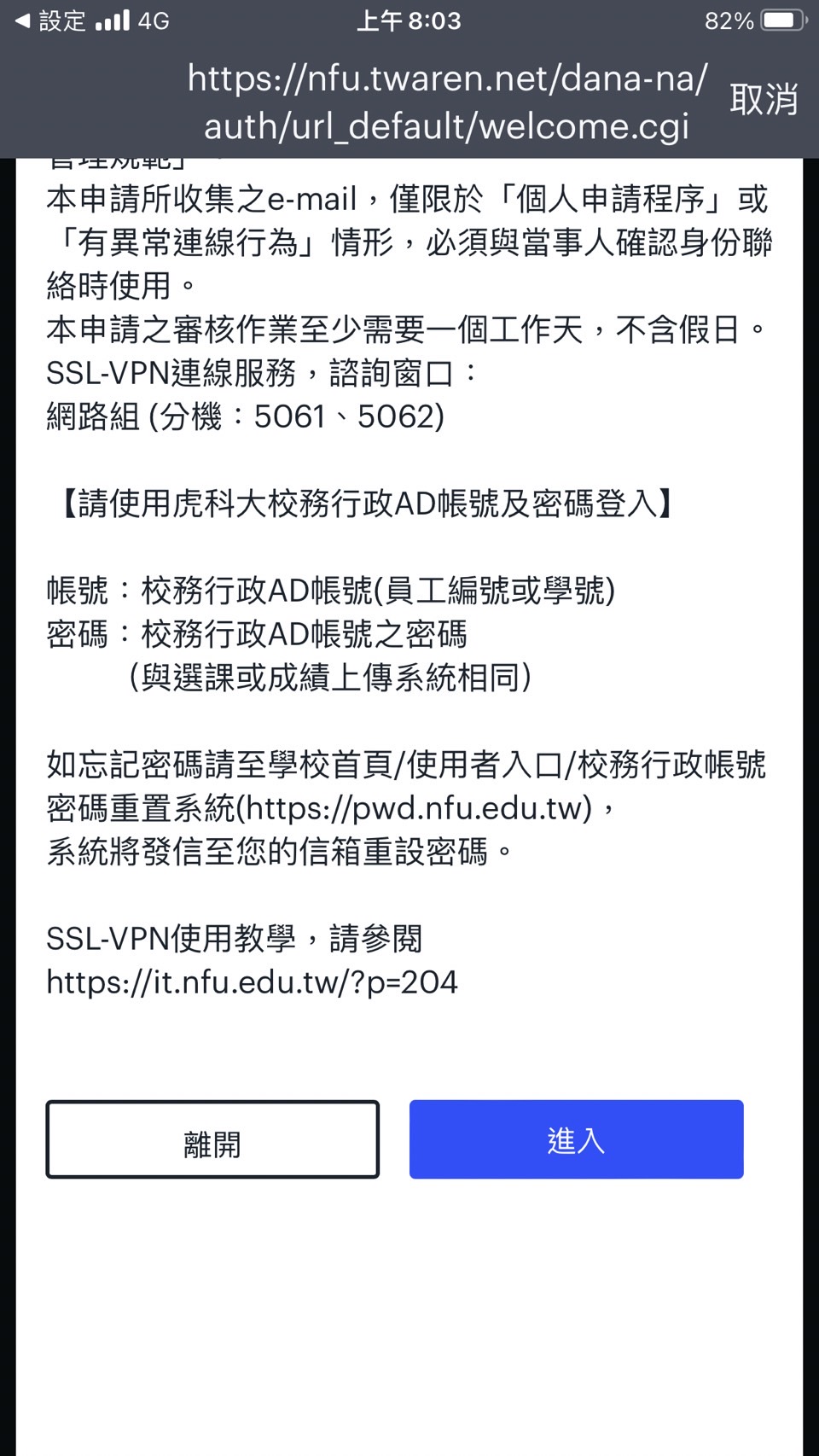
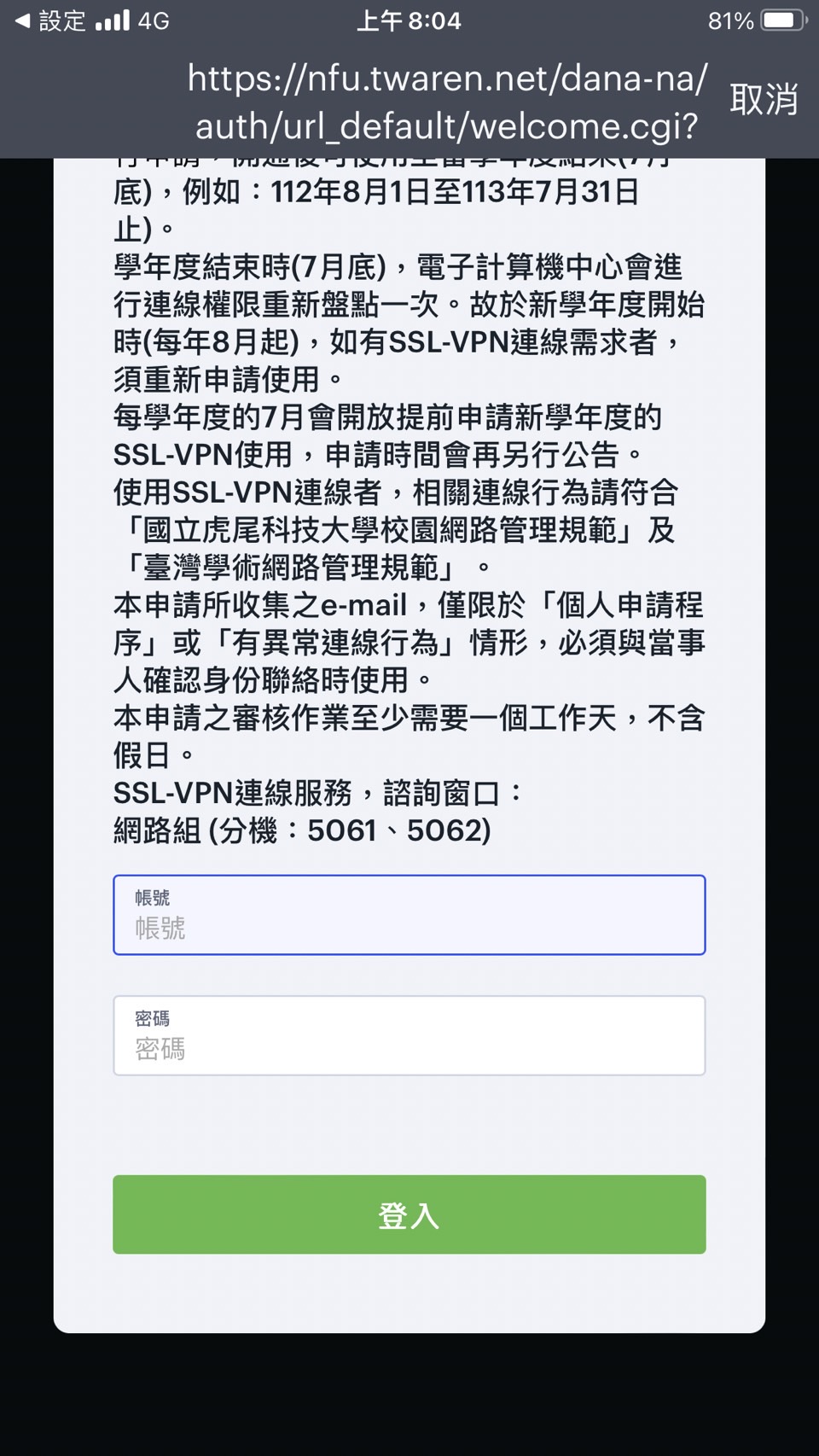
4.The first time you log in, an account/password screen will appear:
Username, Password:
(1)Faculty/Staff: Same as your attendance system account and password.。
(2)Students: Same as your course registration system account and password.。
(3)Press 「進入」 (Enter).
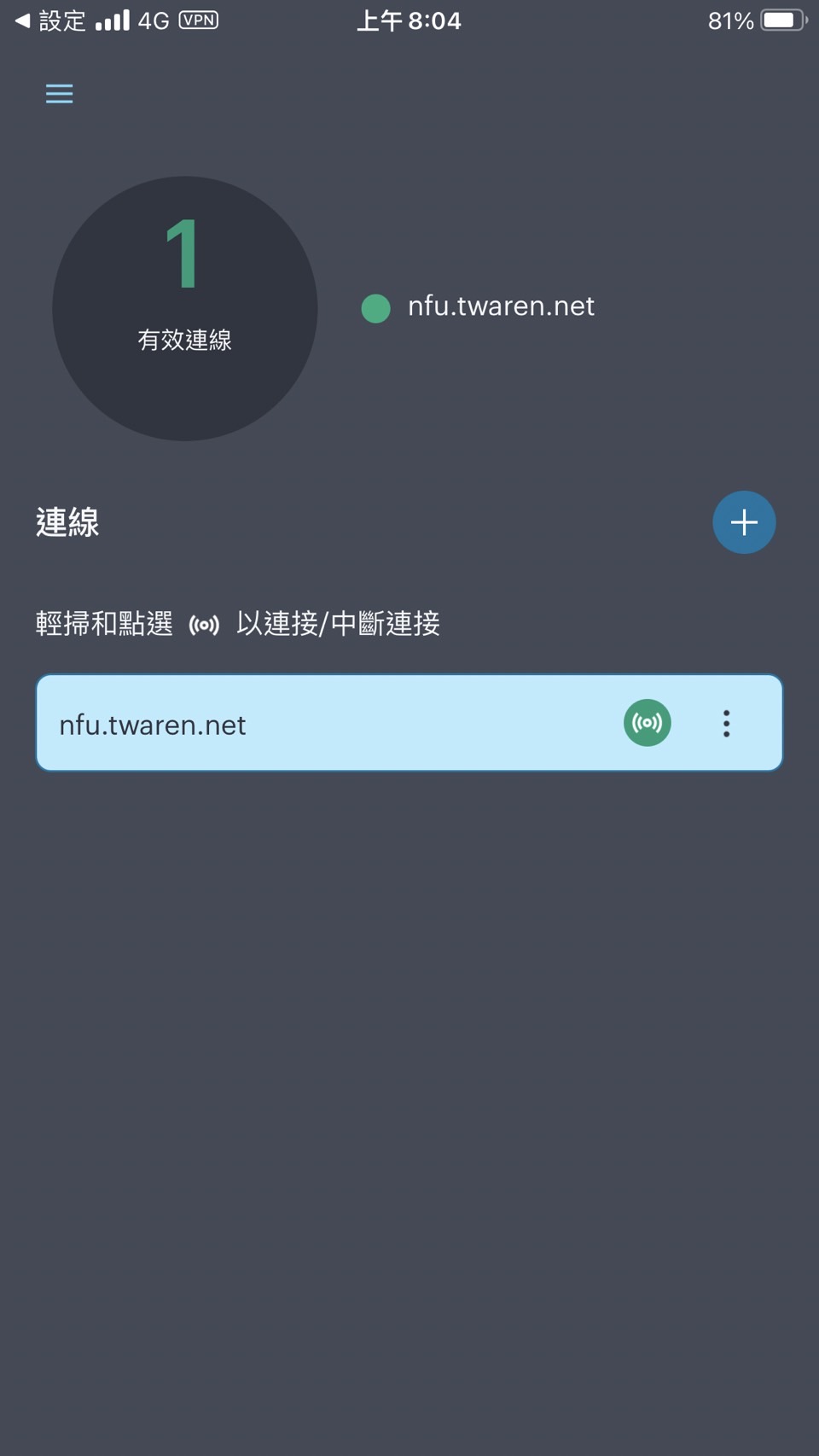
5.The following screen indicates that the SSL-VPN setup is successfully completed.